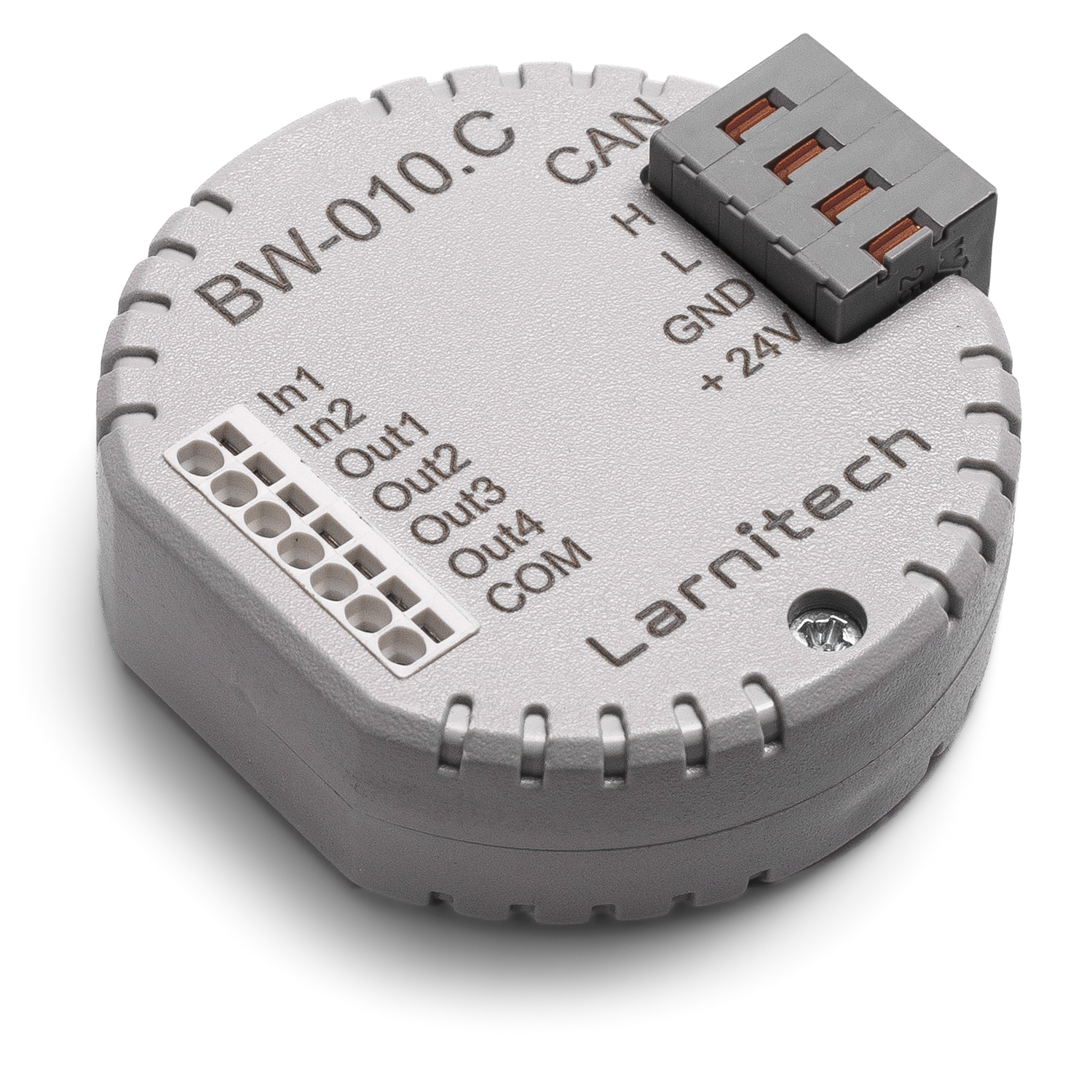

4-CHANNEL MODULE FOR DEVISES WITH 0-10V INPUT OR 0-10V OUTPUT
This module allows connecting devices with 0-10V input or output interfaces to the Smart Home system.
CAUTION! All work related to the installation, connection, setting up, service and support must be carried out by qualified personnel with sufficient skills and experience in working with electrical equipment. To avoid the risk of fire, electric shock, damage to the system and/or personal injury, the system installation and assembly must be performed in accordance with the instructions listed below:
- all connectivity work must be carried out with the power turned OFF;
- use appropriate tools and personal protection against electric shock;
- do not use damaged cables, wires and connectors;
- avoid folding the cables and wires;
- do not apply excessive force to the wires by kinking or pressing them too hard: the inner conductors of the cables and wires may get stripped or damaged;
- do not use the power socket with poor contacts to connect;
- do not exceed the load limit parameters specified in the manual;
- the supply conductors wire section is subject to the specifications for current density limit, insulation type and wire material. Light section can result in cable overheating and fire.
When the power is on, NEVER:
- connect/disconnect the connectors;
- open modules and sensors.
Example of connection
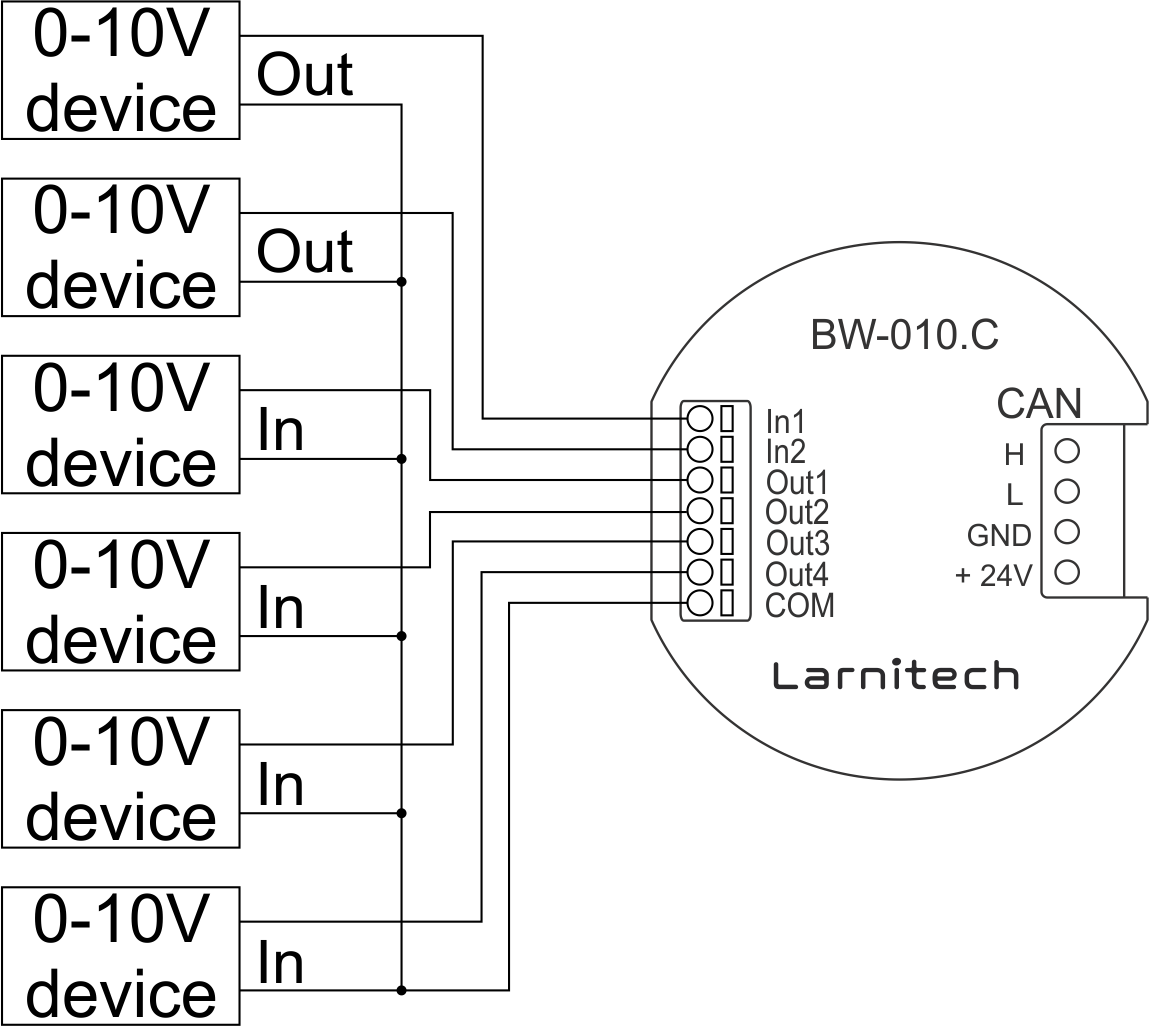
Module parameters
| Parameter name | Value |
|---|---|
| 0-10 input port quantity | 2 |
| 0-10 output port quantity | 4 |
| Max load per channel | 15mA |
| Power supply | 11.5 … 27.5 V DC from CAN |
| Max current(24V) | 55 mA |
| Bus type | CAN (4-wire) |
| Equipment installation type | Free |
| Case material | ABS |
| Protection | IP40 |
| Temperature range | -10 … +50 °C |
| Size | 45x42x14 mm |
| Weight | 15 g |
Module installation and connection procedure
- Connect the interface connector.
- Connect the CAN connector.
- Configure the module using LT setup.
- Check all equipment for proper operation.
Module shut-off and deinstallation procedure
- Disconnect the CAN connector.
- Disconnect the interface connector.
To purchase a product you like, you need to order it. There are several scenarios for how this can be done.
- Choose the product you like and click the "Order" button. When placing an order, fill out the form. Enter information in the fields: full name, phone number and e-mail. Then the manager will call you back to confirm your consent to make the purchase.
- Select the product you like and click the "Add to cart" button. Then go to the cart and click "Checkout". Then fill out the form with contact information and send an application. The manager will contact you for further discussion.
- Go to the product card and click "Buy in one click". After clicking, you need to fill out the form and send an application. The manager will contact you for further discussion.
We work with individuals and legal entities. And we provide two payment options at once.
- Cash. You sign the shipping documents, pay in cash, receive the goods and the check.
- Cashless payments. We accept Visa and MasterCard. Available with courier delivery.
We can deliver your order with our own resources, provided that you are in the city. Or through 4 delivery options:
- Courier delivery. Courier delivery works from 9:00 to 19:00. When the goods arrive at the warehouse, the courier service will contact to clarify the details. The specialist will offer to choose a convenient delivery time and specify the address.
- Pickup from the store. To receive an order, contact an employee at the checkout area and tell them the number.
- We cooperate with postamats. Shelf life is 3 days.
- We provide postal delivery via Russian post. When the order arrives at the department, a notification of the parcel will be sent to your address. You can open the box yourself only after paying for the order.
An additional tab for posting information about goods, delivery or any other important content. It will help you answer the buyer's questions and dispel his doubts about the purchase. Use it as you see fit.
You can remove it or return it back by changing one checkbox in the component settings. Very comfortably.